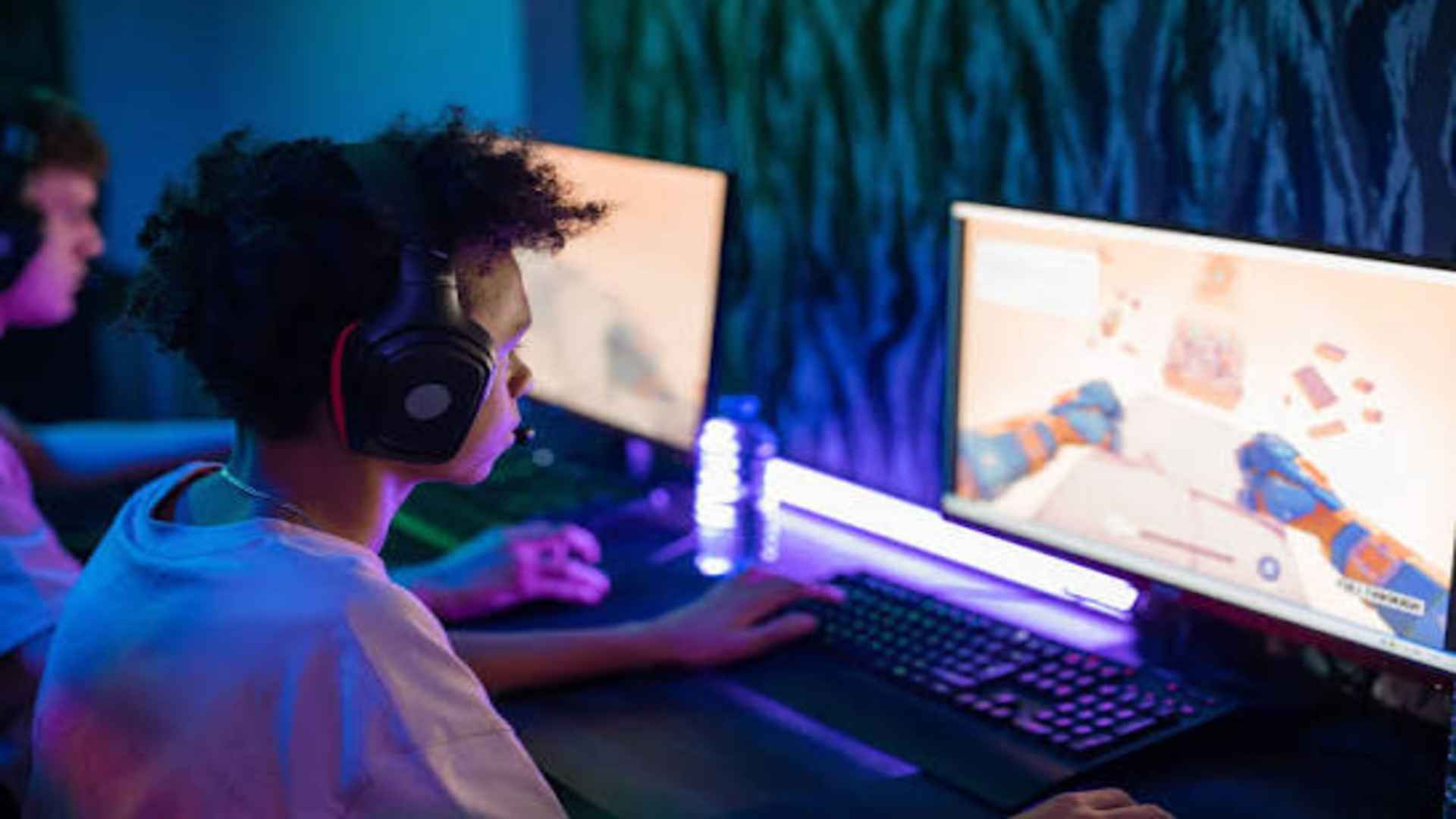
Steam Remote Play Together is a powerful feature that enables gamers to share local multiplayer games with friends over the internet. However, unexpected connection drops, black screens, or input lag can quickly disrupt your gaming session. Understanding the underlying causes of these technical issues allows players to resolve them effectively and return to seamless cooperative play.
Common Technical Reasons for Remote Play Failures
Network instability is one of the primary reasons why Remote Play Together fails to maintain a stable connection. High latency or packet loss on either the host or guest side often results in stream buffering or immediate disconnections. Additionally, outdated graphics drivers and misconfigured audio or controller settings can prevent the session from launching properly.
Hardware acceleration conflicts within the Steam client can also trigger unexpected black screens during active gameplay. When the host system struggles to encode the video stream in real-time, invited players may experience severe lag or unresponsive controls. Recognizing these common failure points helps narrow down the necessary troubleshooting steps.
Network Optimization and Connection Fixes
To ensure a stable streaming experience, both the host and guest should ideally use a wired Ethernet connection rather than wireless Wi-Fi. Ethernet significantly reduces latency and minimizes packet loss, which are critical factors for real-time game streaming. Restarting your router before starting a long gaming session can also clear temporary network congestion.
Disabling bandwidth-heavy background applications, such as cloud backups or active downloads, frees up vital network capacity. Adjusting the streaming quality settings within the Steam Remote Play menu to prioritize speed over visual fidelity can drastically improve performance. These minor adjustments often resolve frequent connection drops and input delays.
Client Settings and Hardware Adjustments
Configuring the Steam client correctly plays a crucial role in maintaining feature stability. Navigating to the Remote Play settings menu allows users to toggle Advanced Host Options, where disabling hardware encoding can resolve compatibility issues on specific graphics cards. Restarting the Steam client as an administrator can also grant the necessary permissions required for smooth input sharing.
Updating your GPU drivers ensures that video encoding and decoding run without performance bottlenecks or unexpected crashes. If guest players encounter black screens with active audio, turning off the steam overlay before launching the title can serve as an effective workaround. Maintaining updated software across all connected devices guarantees maximum system compatibility.
Antivirus and Firewall Permissions
Overprotective security software often blocks the network ports required for Remote Play Together to establish a peer-to-peer connection. Adding the Steam application to your operating system's firewall exception list prevents unnecessary security interventions. Temporarily disabling third-party antivirus software can help verify if it is interference causing the connection failure.
Ensuring that UPnP (Universal Plug and Play) is enabled on your router allows Steam to open required communication ports automatically. Taking the time to verify these security settings eliminates persistent connection blocks, allowing friends to join sessions without technical friction.